Duskfade PC Controls
Keyboard and mouse layout for the Steam demo and full release.
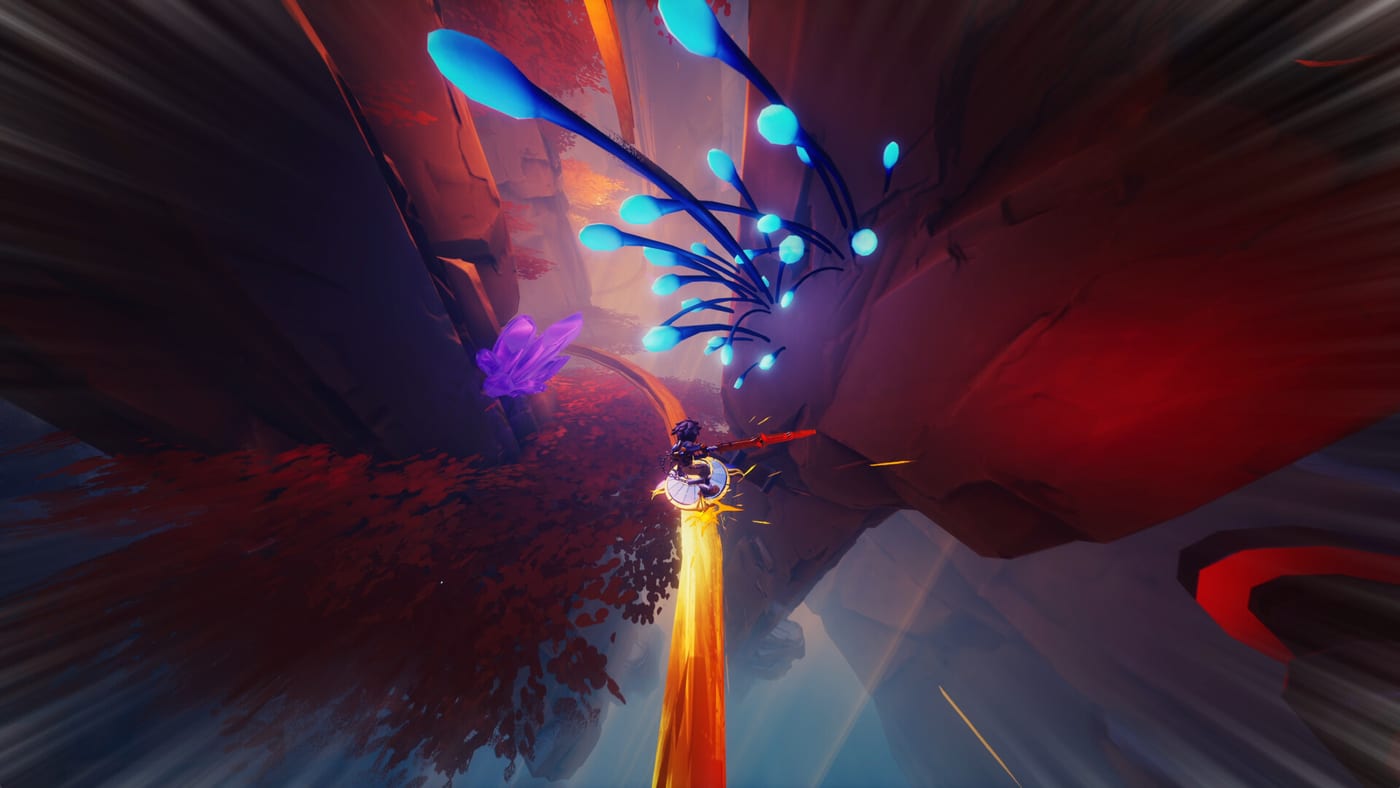
Playing Duskfade on PC through Steam gives you full keyboard-and-mouse support alongside controller input. Weird Beluga’s demo still recommends a gamepad because grapple aim and glide corrections benefit from analog sticks, but many players prefer WASD precision once they remap comfortably. This guide explains each action category, sensible default thinking, and how to align your bindings with wiki routes—without inventing hidden mechanics beyond the public demo.
Core movement actions
Platforming is the spine of Duskfade. On PC you typically map:
- Move / camera: WASD movement with mouse look (invert Y in settings if aerial sections feel wrong).
- Jump / double jump: Space on first press; a second press at apex triggers double jump once unlocked via Upgrade Gears.
- Air dash: A dedicated key (often Shift or Ctrl) consumed mid-air; pairs with double jump for Tick Town roof routes in the Demo Walkthrough.
- Glide: Hold jump or a separate glide key after unlocking; used heavily in forest and cloudy height sections.
- Grapple / hook-shot: Mouse button or key near your index finger—Cuckoo fires toward highlighted anchors. Rebind somewhere comfortable for Wrath repositioning; see How to Beat Wrath.
Practice these in Movement Tech before judging difficulty—Tick Town assumes you can chain three mobility tools without pausing.
Combat and Minutero
Minutero, Zirian’s clock-hand sword, uses light and heavy attacks:
- Light combo: Primary mouse button or key repeat for fast slashes.
- Heavy / finisher: Secondary mouse button or hold-primary for slower, guard-breaking hits.
- Blast Attack: Usually mapped to a key opposite movement (E or Q) to avoid accidental presses while strafing.
- Temporal Shift trigger: Tied to perfect dodges—dodge key timed against enemy telegraphs freezes time briefly for counter hits. Higher demo difficulties demand consistency; lower settings in What to Expect widen windows.
Gadget-style shotgun-like blasts occupy their own slot once unlocked. Keep it near Blast Attack for muscle memory during add waves in mines and ruins.
Interaction and menus
- Interact / talk: F or E depending on your regional preset.
- Pause / map: Escape opens the menu where difficulty (four presets in demo) and rebinding live.
- Skill trees: Access Upgrade Gear spending for Minutero, Zirian abilities, and Cuckoo enhancements—prioritize mobility per How to Play.
Track collectible progress externally with the Demo Checklist if the in-game map lacks checkmarks for Star Shards or Multicoloured Flasks.
Rebinding best practices
Steam Input can override demo defaults. If grapple misfires:
- Disable per-game Steam Input for app 4023080 (demo) and 2542020 (full game) while testing.
- Place dodge, dash, and grapple on keys your left hand reaches without claw grip.
- Mirror important actions on mouse side buttons if available.
- Document custom layouts in a notes app—future guides assume generic names, not your exact keys.
Compare feel against Controller Setup on the same machine if you own a pad; switching mid-demo helps identify whether struggle is binding-related or timing-related.
Performance and display tips
PC demo benefits from stable frame times for Temporal Shift consistency. Cap frame rate near your monitor refresh if you see variable dodge windows. Fullscreen borderless avoids alt-tab shader stutter on first launch after Demo Download.
Keyboard players should enable toggle sprint only if the game offers it—hold-to-run can fatigue during long glide sections.
When to switch to controller
Consider a gamepad if:
- Grapple aim misses moving targets in Wrath despite correct timing.
- Glide steering overshoots narrow ruins beams.
- Camera management fights simultaneous movement and gadget use.
You can finish the entire demo on keyboard—community proof exists—but Fireshine’s recommendation exists for a reason. Hybrid players often learn story on controller and challenge-mode on keyboard.
Related guides
- Controls Hub — overview and learning order.
- Movement Tech — advanced chains.
- Demo Walkthrough — ability gating by zone.
- Platforms and Pre-order — buying retail on PC vs console.
Frequently Asked Questions
Quick answers based on the demo and official pre-launch info.
Are Duskfade PC controls fully remappable?
The demo includes a standard rebind menu. After changing keys, cross-check [Movement Tech](/controls/movement-tech/) so tutorials still make sense.
Is mouse required on PC?
Mouse look is the default camera scheme. Controller camera is available if you switch devices—see [Controller Setup](/controls/controller/).
Which PC control should I bind grapple to?
Use a key or mouse button you can hit while holding movement. Wrath tests this—read [How to Beat Wrath](/guides/beat-wrath/) after rebinding.